What customers see: your Order Link shop
Walk through your Order Link the way a customer does, from picking items to paying.
Before you start
- Your Order Link is on (Products → Order Link → Link is live).
- 1
Open your shop
On Products → Order Link, tap Preview as customer. Customers open the same page from your link (nuhachat.com/shop/your-name).
Open this in Nuha Chat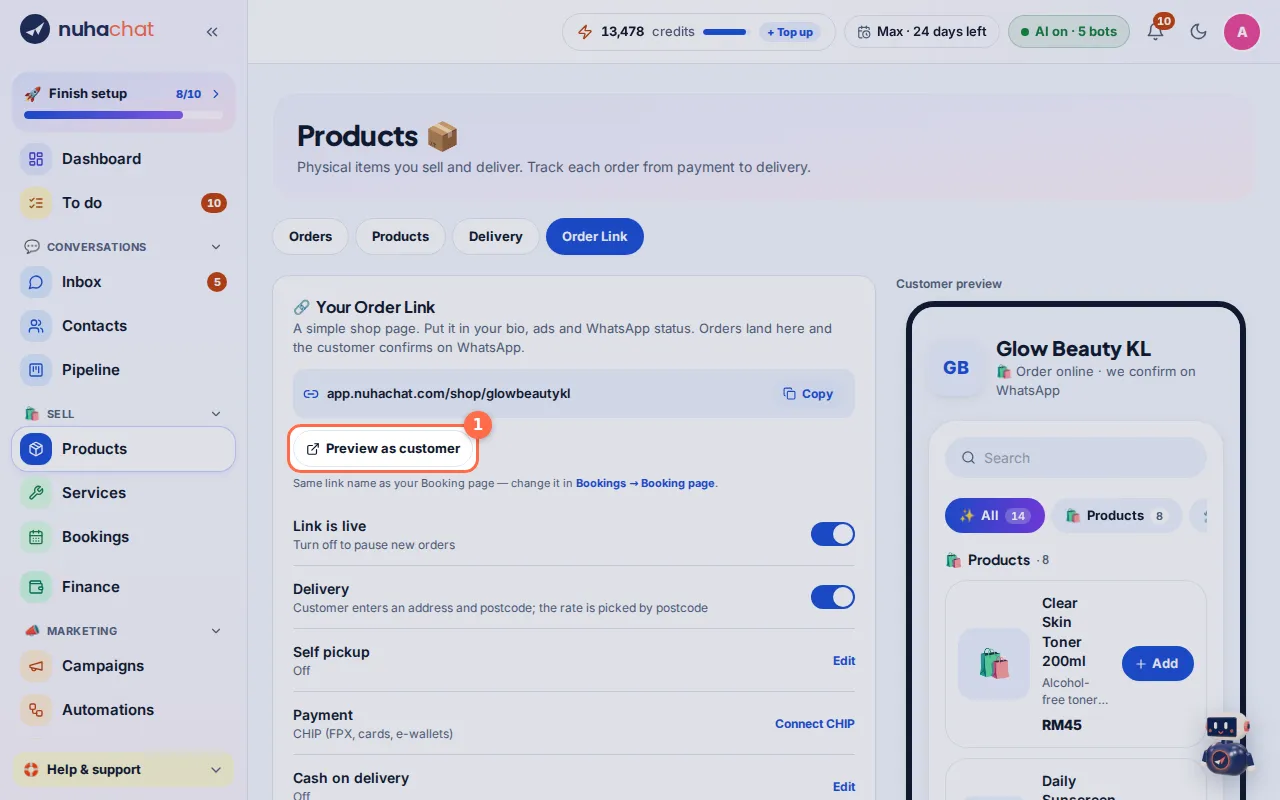
Tap the picture to see it bigger. - 2
Pick items
Customers search or tap a category, then tap Add. Items with sizes or colours open a sheet where they pick one first. Sold out items cannot be added.
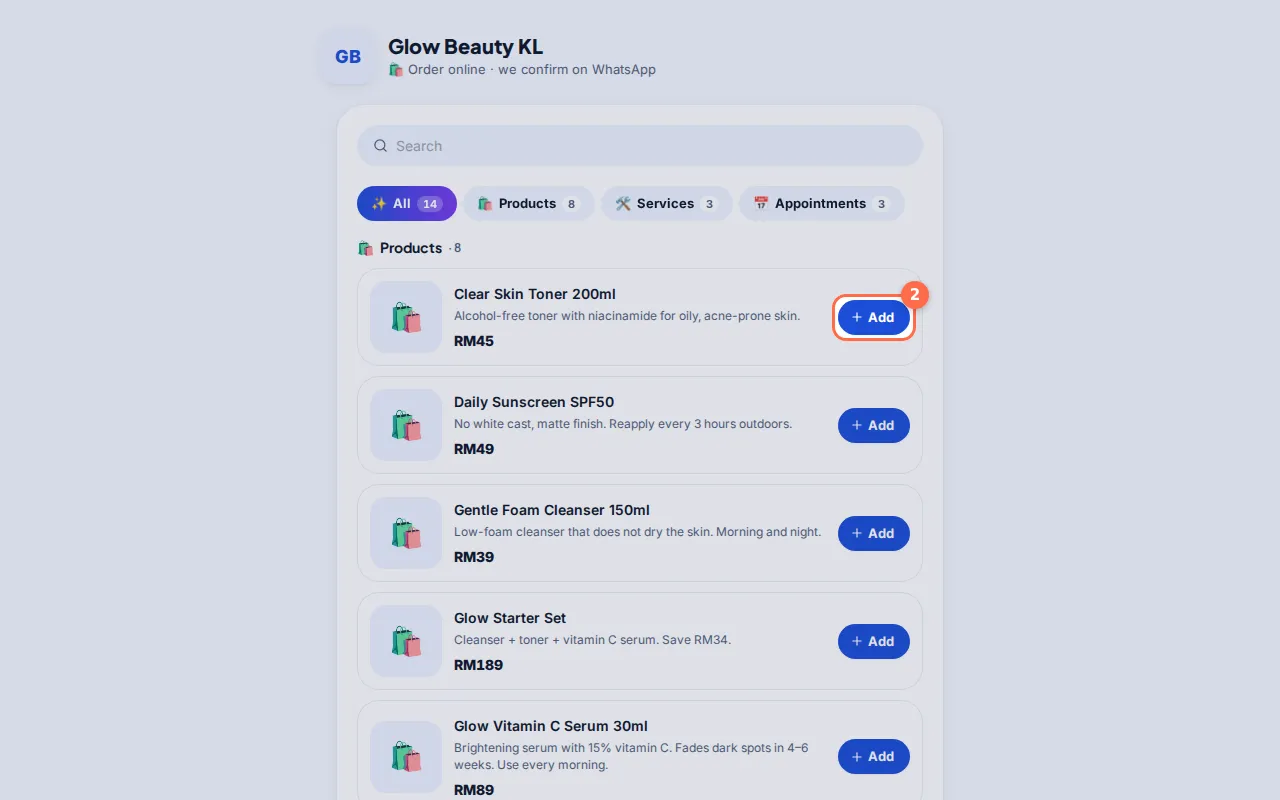
Tap the picture to see it bigger. - 3
Check out
They tap Checkout, then choose How do you want it?: Delivery (with their address and postcode) or Self pickup.
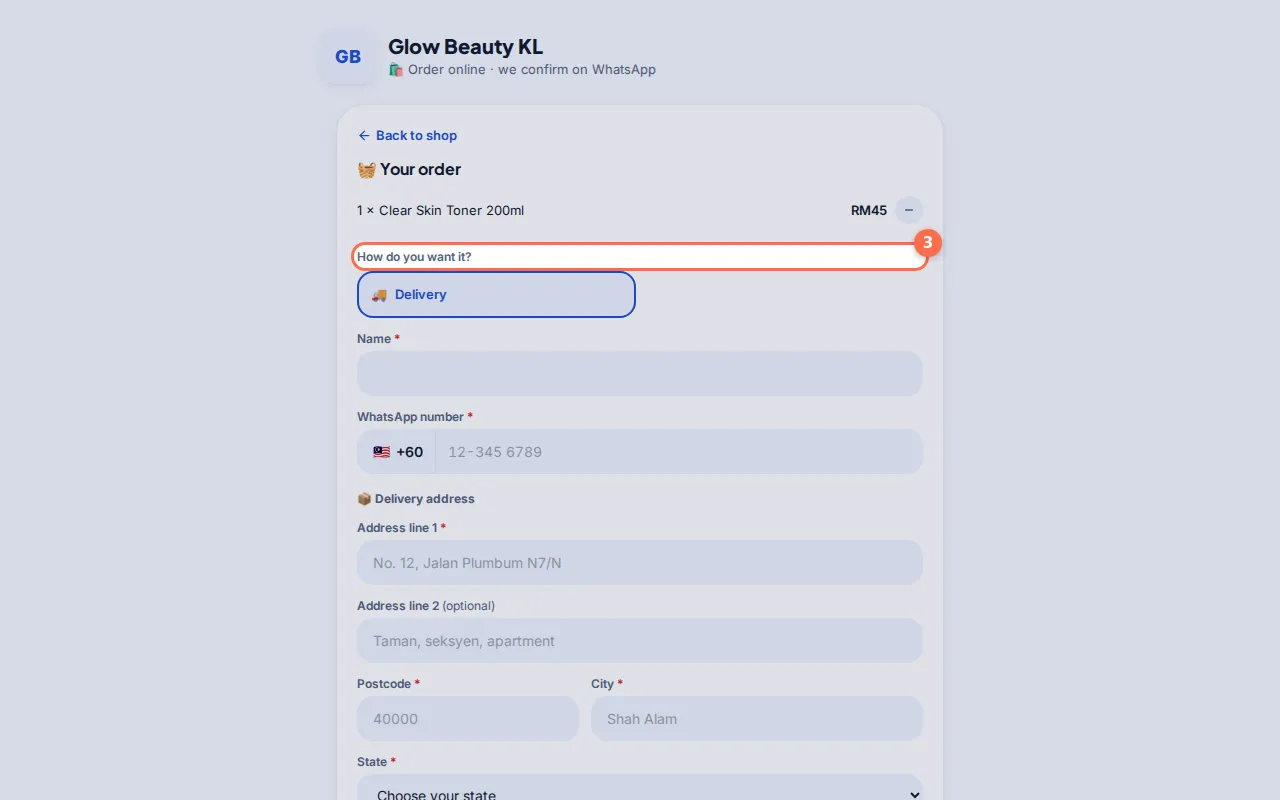
Tap the picture to see it bigger. - 4
Pay
Under Payment they pick Pay online (FPX, card or e-wallet through CHIP) or, if you allow it, Cash on delivery. Then they tap Pay RM… or Place order (pay on delivery).
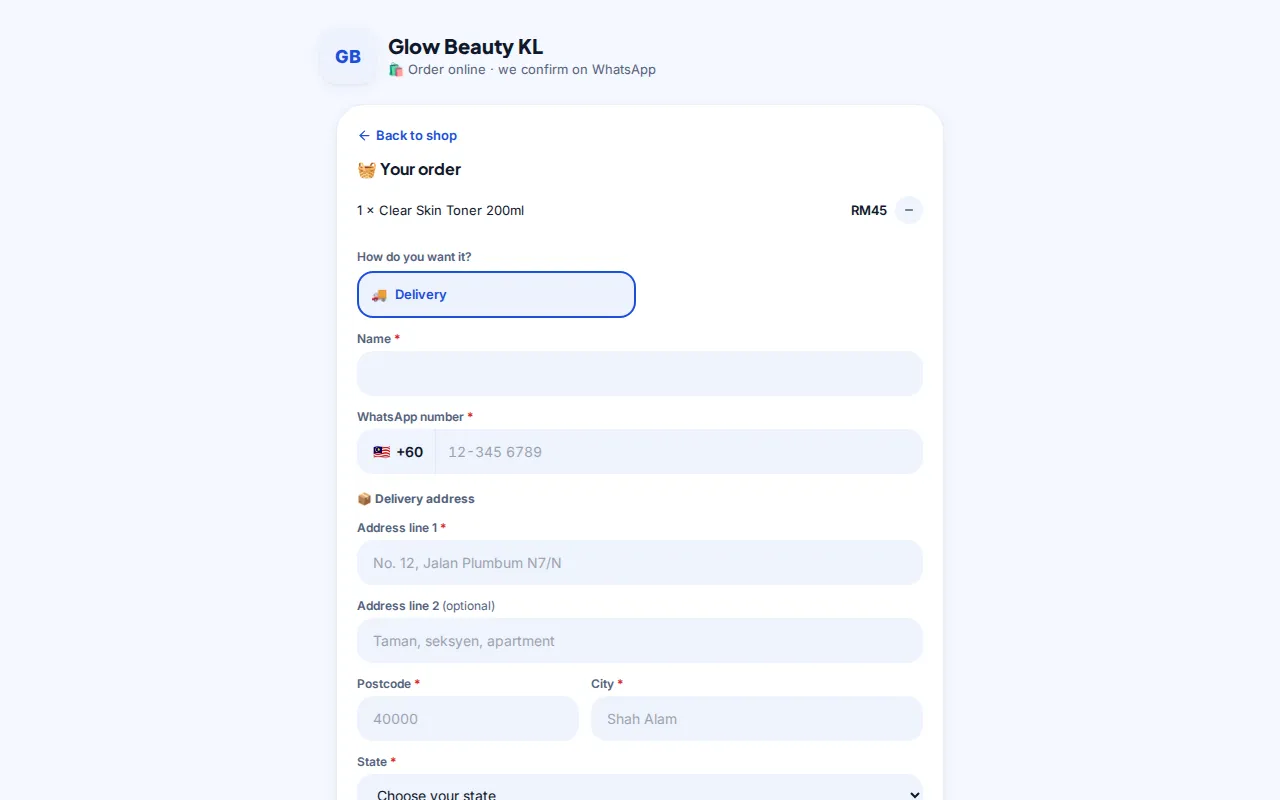
Tap the picture to see it bigger. - 5
Order received
They see Order received!. With Confirm on WhatsApp on, they send you the order on WhatsApp, and Nuha carries on in the chat. The order shows in Products → Orders.
Tips
- Your logo and business name show at the top. A small "Powered by Nuha Chat" shows at the bottom.
- Prices, stock and delivery fees always come from your Catalog and Delivery settings.