What customers see: your booking page
See how customers pick a service and a time, and book or pay.
2 min
Before you start
- Your booking page is on (Bookings → Booking page).
- 1
Open the page
On Bookings → Booking page, tap Preview as customer. Customers open it from your link.
Open this in Nuha Chat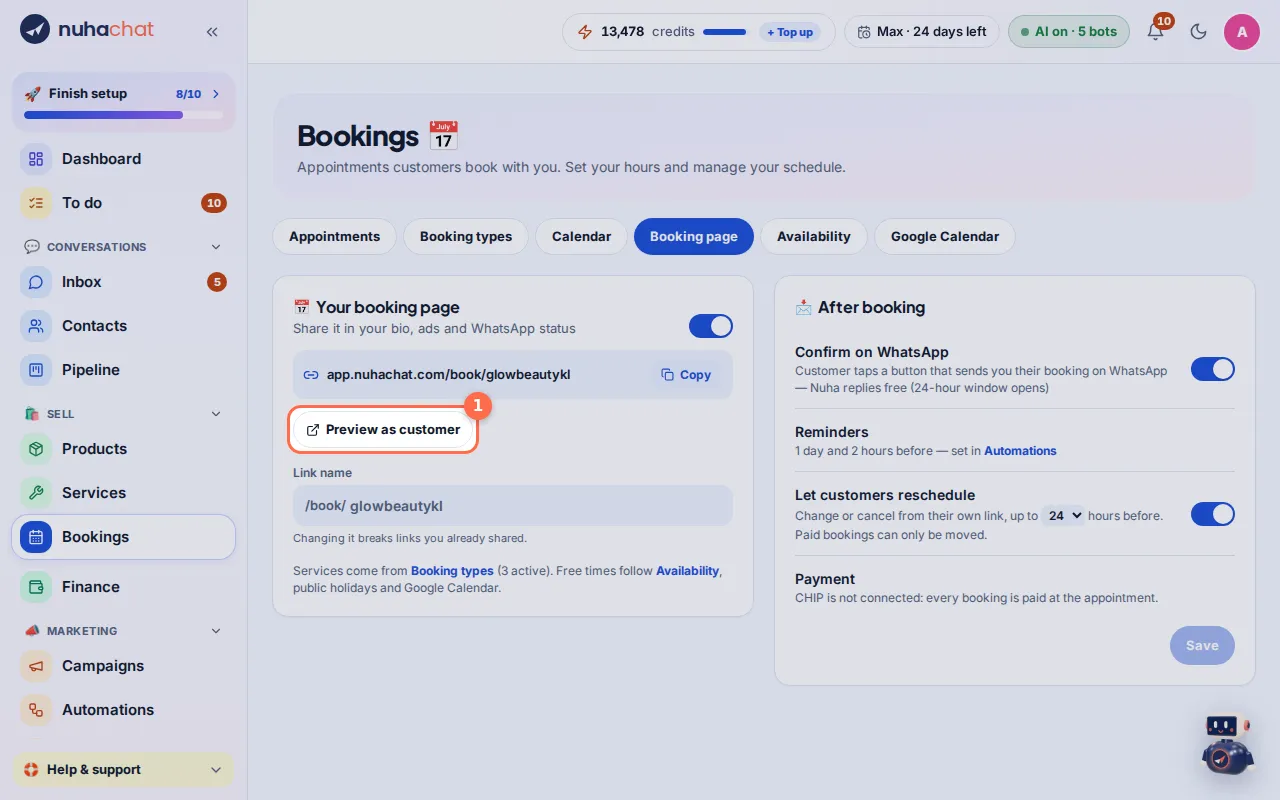
Tap the picture to see it bigger. - 2
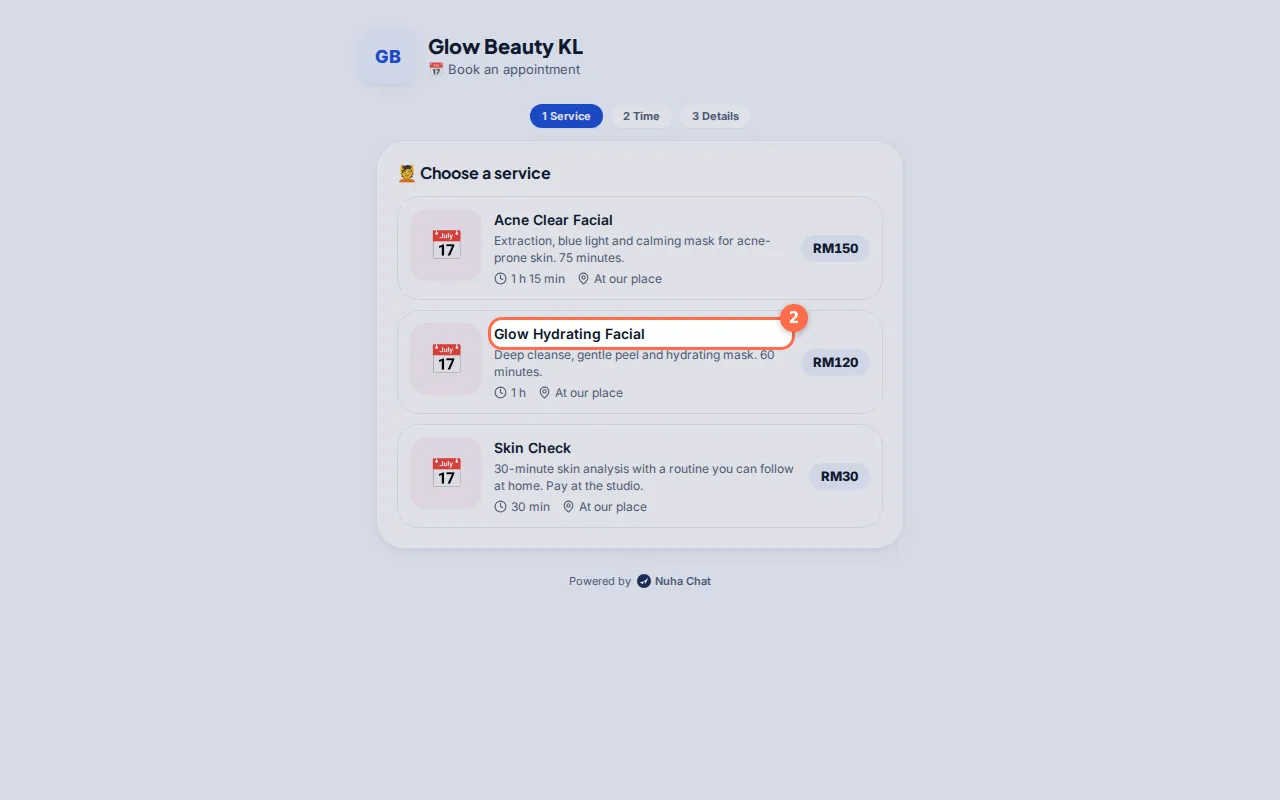
Choose a service
The steps at the top are Service, Time and Details. The customer taps the booking type they want.
Tap the picture to see it bigger. - 3
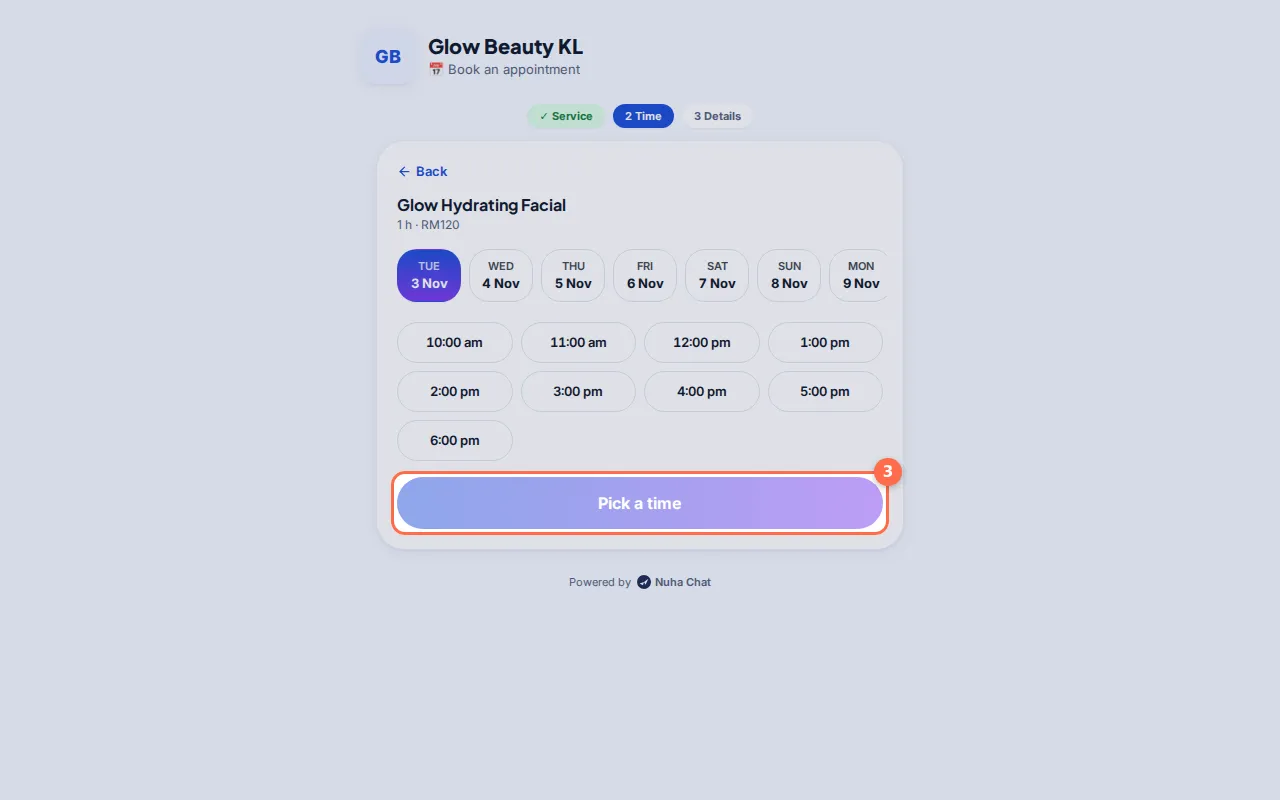
Pick a time
Under Pick a time they choose a day and a free slot, then tap Continue · …. Only times inside your opening hours and booking rules show.
Tap the picture to see it bigger. - 4
Fill in details and book
Under Your details they type their name and WhatsApp number, and their address if you go to them. Then they tap Book & pay (pay online now) or Book now (pay at the appointment).
- 5
Booked
They see You’re booked! with a link to Change or cancel this booking (if you allow rescheduling). With Confirm on WhatsApp on, they send you the booking on WhatsApp.
Tips
- The booking shows in Bookings → Appointments and your calendar straight away.